Flexible Full-Bleed Card Carousel Loop
Layout Variant: C088
Content Type: Collection
Teaser Title | Teaser Text | Teaser CTA Label | Picture & Other Media | Items | CTAs | |
C088 Query List | Yes | -- | -- | -- | -- | Yes (Local Settings) |
Query Results Content | Yes | Yes | -- | Yes | -- | -- |
Aspect Ratio:
Expected Use:
This component features content in a responsive carousel layout configured based on content type and designated CoreMedia tags. While designed for the Newsroom project, this component has the flexibility for many use cases to showcase content. Download additional author instructions.
Building the C088 Component:
This component uses a CoreMedia Query List which functions similar to a Collection, but allows a dynamic selection of content. Build the C088 Query List as follows.
On the Content Tab
- Teaser Title - The Teaser Title is the header label of the carousel
- Teaser Text - not used.
- Teaser CTA Label - set this to something like "Learn More". This is the label that will show for the CTA content you add.
- Call-to-Action-Button - you will use the "Linked-Call-to-Action Label" radio button and add a page or external link to a more detailed bio or other landing page for the expert. The CTA is pulled from the Teaser CTA Label. Note, the "Use both Custom & Linked Call-to_action Label" does not work in this component
- Pictures and Other Media - not used
- Items -
- Layout Variant - Set to C088
On the Conditions Tab
- Selection of Content Types - While the default use case is for "Pages", you could also create carousels for Downloads, External Links, Videos, or any combination. Note, that in the use case of teh Newsroom we are no longer using News Teasers or Event Teasers. This means you must have a Picture associated with the content you wish to display along with a Teaser Title and Teaser Text. Additionally you must have the appropriate tags available on your content that you will define in the Local Settings (see instructions below for the System Tab)
- Search Query - use the appropriate tags to return the content you wish to display
- Sorting of the Search Results
- sorted - externally display date
- order - descending (newest first)
- number of items - expected to be 6-30
On the System Tab
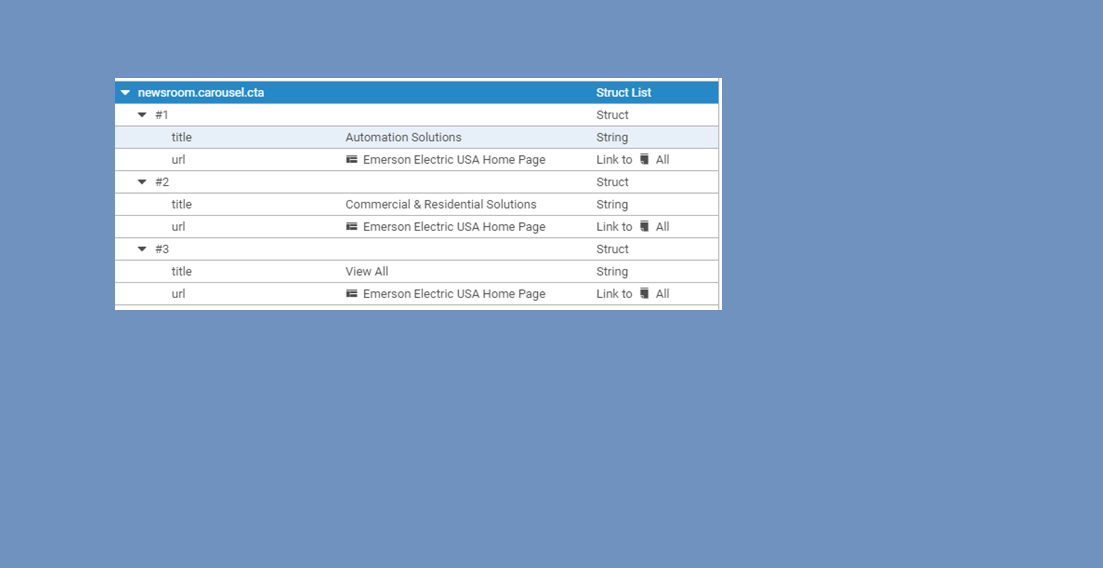
For the CTAs that show to the right of the Teaser Title you will need to add one or more local settings structs.
- Go to the system tab of the query list created
- Add a struct list and name it newsroom.carousel.cta
- Add a struct on the struct list
- Inside the struct add a string and name the key as title and value Automations Solutions (value depends on what is required)
- On the same struct add a link and name the key as url and add/drag a page for the link
- Repeat the steps 3-6 as needed
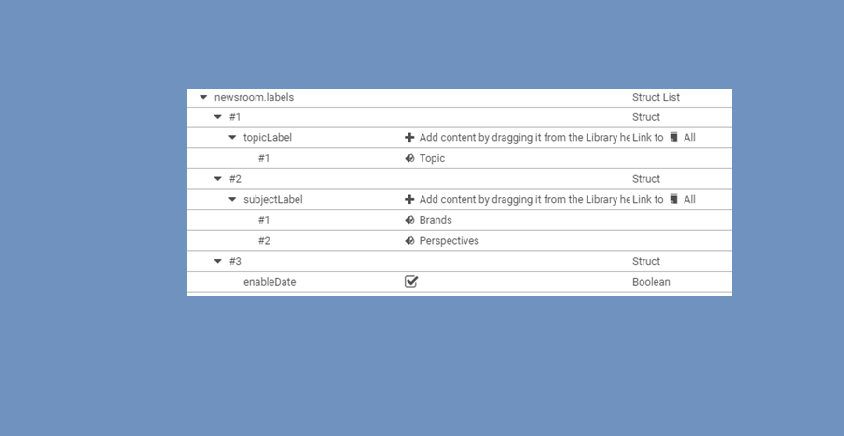
Adding the labels for the carousel cards
- Add a struct list and name it newsroom.labels
- Add a struct on the struct list
- Inside the struct add a Link list and name the key as topicLabel and add/drag a tag (Topics)
- Add a new struct on the struct list
- Inside the struct add a Link list and name the key as subjectLabel and add/drag a tag (Brands,Perspective,People, etc.)
- Add a new struct on the struct list
- Inside the struct add a Boolean and name the key as enableDate. Click the checkbox for the label 3 to display and uncheck the checkbox to hide it
- Click Finish Editing and Apply all changes